
Bulk product description generator for Shopify
A whole collection. One consistent voice.
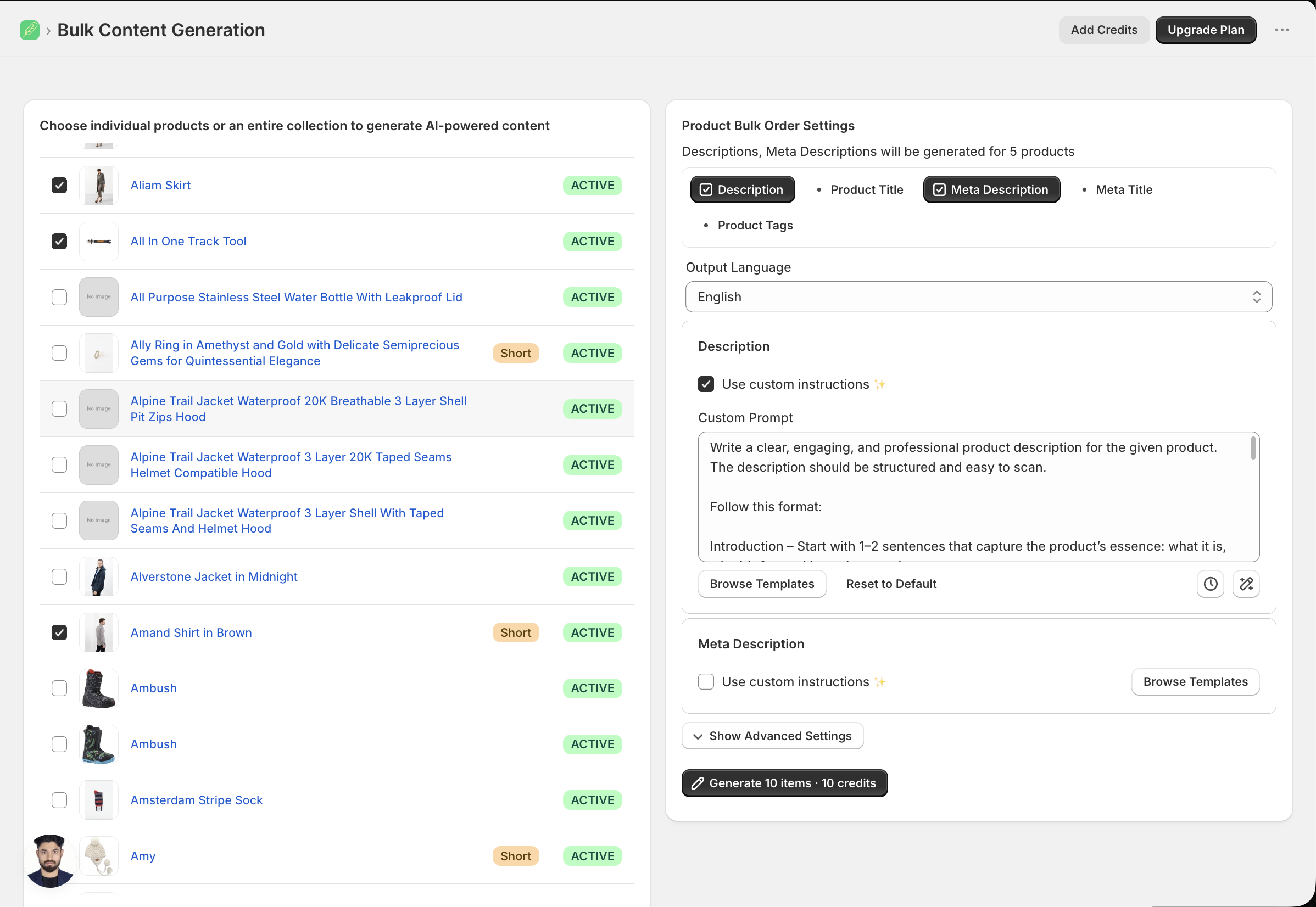
Write product descriptions in bulk inside Shopify using your product facts, a chosen language, and reusable brand instructions. Turn a supplier import or collection refresh into a workflow you can review and repeat.
For the catalog work that keeps coming back.
- Supplier imports: replace generic copy with descriptions based on your product facts and the way your store speaks.
- Collection launches: apply a shared structure while keeping the details specific to each item.
- Catalog refreshes: bring older listings into the same tone and format as new arrivals.
- New markets: use 30+ generation languages, then have important translations checked for your audience.
A workflow you can repeat
How to generate descriptions in bulk.
Step 1
Group products that need the same work.
Start with a collection, a supplier import, or selected products. Keep items with different information needs in separate batches so the instructions fit the products.
Step 2
Decide what the copy should use.
Check materials, dimensions, compatibility, and other specifications. Images can add visual context, while web research can supply context to check against your product records.
Step 3
Set your brand instructions.
Describe the tone, structure, language, and details to include. Tell the app which claims to avoid. Choose from the models available to your plan and generation tool.
Step 4
Check a small batch and its credit estimate.
Try representative products before a larger run. Look for missing details, repeated phrases, and unsupported claims. Adjust the instructions until the results fit your catalog.
Step 5
Review what will be saved.
Read the generated content and check the fields selected for saving. Saving a field replaces its existing content. Keep a product export before applying a large update.
Step 6
Choose how to handle the next import.
Keep generation manual, enable it for new products, or use the app’s Generate Content action in Shopify Flow. Review the generation and auto-save settings for the workflow you choose.
An instruction to adapt
Give every batch a clear brief.
A shared prompt gives the batch a direction. The specifications still need to come from each product’s information. Review a few different items to see where the instruction needs more detail.
See product facts alongside sample output →Write a practical description using only the supplied product facts. Open with the product’s intended use, then list three useful details. Keep the tone warm and direct. Do not invent materials, dimensions, certifications, shipping terms, or guarantees. If a detail is missing, leave it out.
Descriptions are one part of the product page.
The app also has tools for product titles, search listing titles and meta descriptions, tags, image alt text, and collection descriptions. Use the appropriate tool for each field; availability and credit usage vary.
Explore the content fields →Before your first bulk run
Can I try bulk writing before a large catalog update?
Start with the free plan’s 200 monthly credits and a small selection of products. Credits are a generation allowance, not a fixed number of completed product pages.
Can I use existing copy instead of generating new descriptions?
Yes. If you already have the exact copy you want, a CSV workflow may be a better fit. The bulk editing guide compares writing new content with updating existing text.
Can someone help with my instructions?
Use the in-app chat or book a free 30-minute setup call from Help. Bring a few representative products and the writing style you want to achieve.